Model Shoot: Put Your Garments on an AI-Generated Model
Model Shoot is the ShootPX tool that shows your clothing or accessories on a model, without a casting, a studio or a photographer. You pick or create a model, upload photos of the garments, choose the output settings and generate on-model shots. It runs as a three-step flow: Model, Products, then Output.
By ShootPX Team · Updated
Step 1: choose your model
The model step has three tabs, and you only need one.
- Presets: pick from ready-made models shown as thumbnails.
- Generate: create a model from attributes such as gender, age bracket, ethnicity, body type and skin tone, with an optional note where you can describe details like a smile or hair length. This step needs no image and uses credits.
- Upload: bring your own model photo.
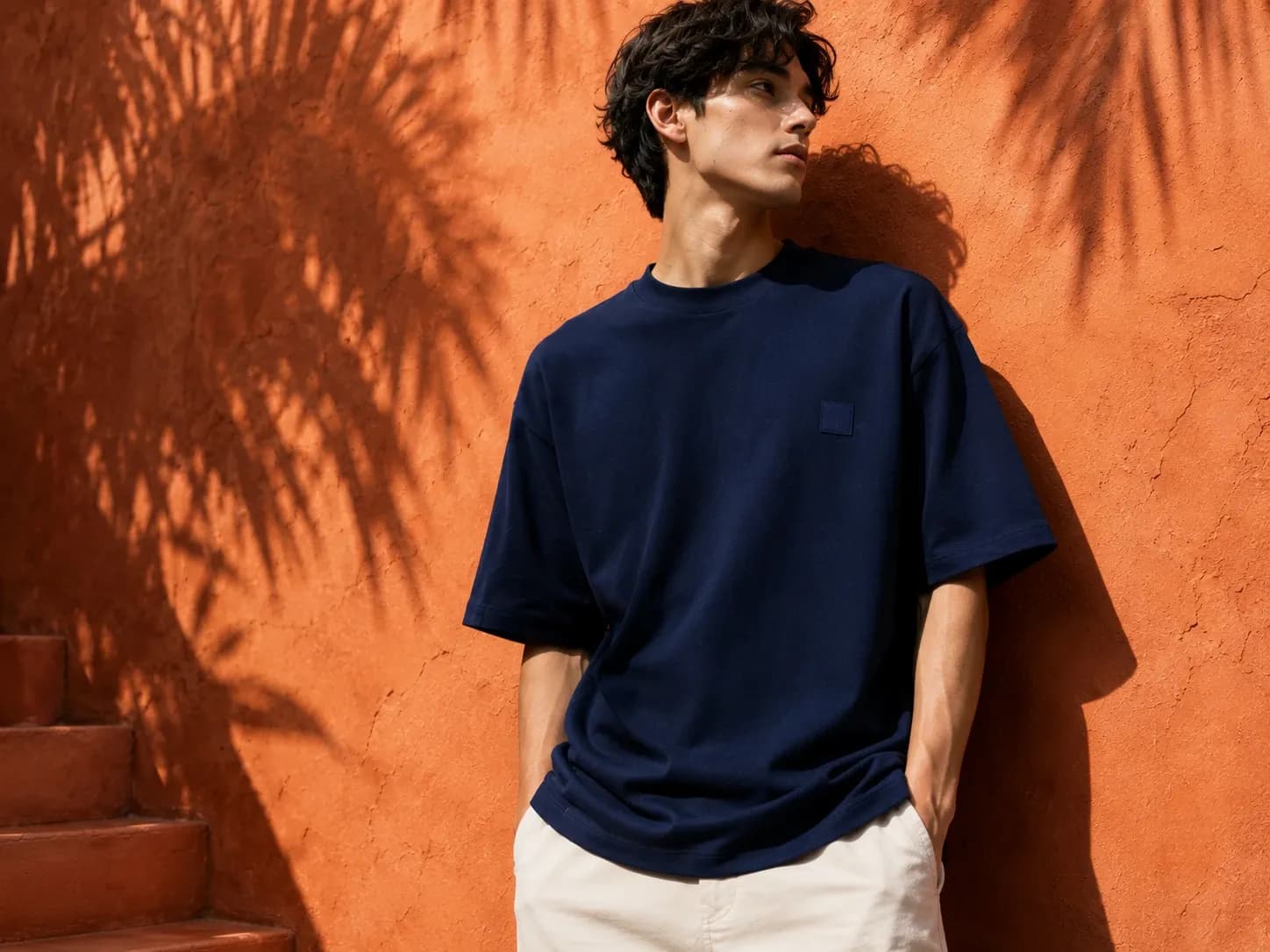
Pick a model whose look matches the customer you sell to. It is the first thing a buyer reads about who the product is for.
Step 2: add the garments
Choose between a single garment and multiple garments. In single mode there is one slot. In multiple mode you get a Top slot and a Bottom slot, and you can add up to three extra slots, each with your own label, such as watch, hat, shoes or bag.
Each slot accepts several photos of the same item, and the tool suggests front, back, side and detail views. Giving it more angles of one garment helps it understand the item. Keep each item in its own slot, because the tool treats photos in the same slot as the same item.
You can also add optional reference images. These are used for style and pose guidance only and never define what the product looks like, so do not use them to show the garment itself.
There is a total limit of 10 images per shoot, counting the model, the product photos and any references. A counter shows how many you have used.
Step 3: set the output
- Aspect ratio: choose from the shapes offered.
- Outputs: how many images to generate.
- Resolution: 1K, 2K or 4K, with each step costing more credits.
- Prompt: an optional note such as soft window light or a minimal studio, with the free Enhance prompt button.
The panel shows the total credit cost for your output count and resolution before you press Generate on-model shots. If your balance is lower than the cost, a warning tells you that some outputs may not be generated, with a link to buy credits.
Limits worth knowing
Some model and garment combinations cannot be generated, and the tool will tell you so instead of producing something wrong. Only one generation runs at a time, so start the next shoot after the current one finishes. Results appear in the results panel, where you can download images or send them to another tool.
As with every generated image, check the garment against the real one. Look closely at the neckline, sleeve length, print placement and colour, because a buyer will compare what they receive with what they saw.
Reusing a model across a collection
Once you have a model you like, whether a preset, one you generated or one you uploaded, you can keep choosing that same model. If you want a collection to feature the same face and build, do exactly that. If you sell to several kinds of customers, run the same garment on more than one model and use each version on the page that suits it.
The Generate tab is separate from the shoot itself and uses its own credits, so it is worth settling on a small set of models you like rather than generating a new one for every product.
Frequently asked questions
Do I need a photo of a real person?
No. You can pick a preset model or generate one from attributes. You can also upload your own model photo if you prefer.
Can I show more than one item on the model?
Yes. Multiple garments mode has Top and Bottom slots plus up to three extra labelled slots, within a total of 10 images per shoot.